Getting Started
The Agro Navigation app is designed to be as simple and intuitive as possible. You don't need to study complex settings — just three steps are enough to start working in the field. Below is a detailed guide that will help you quickly master all the features of the app.
Three Steps to Start Working
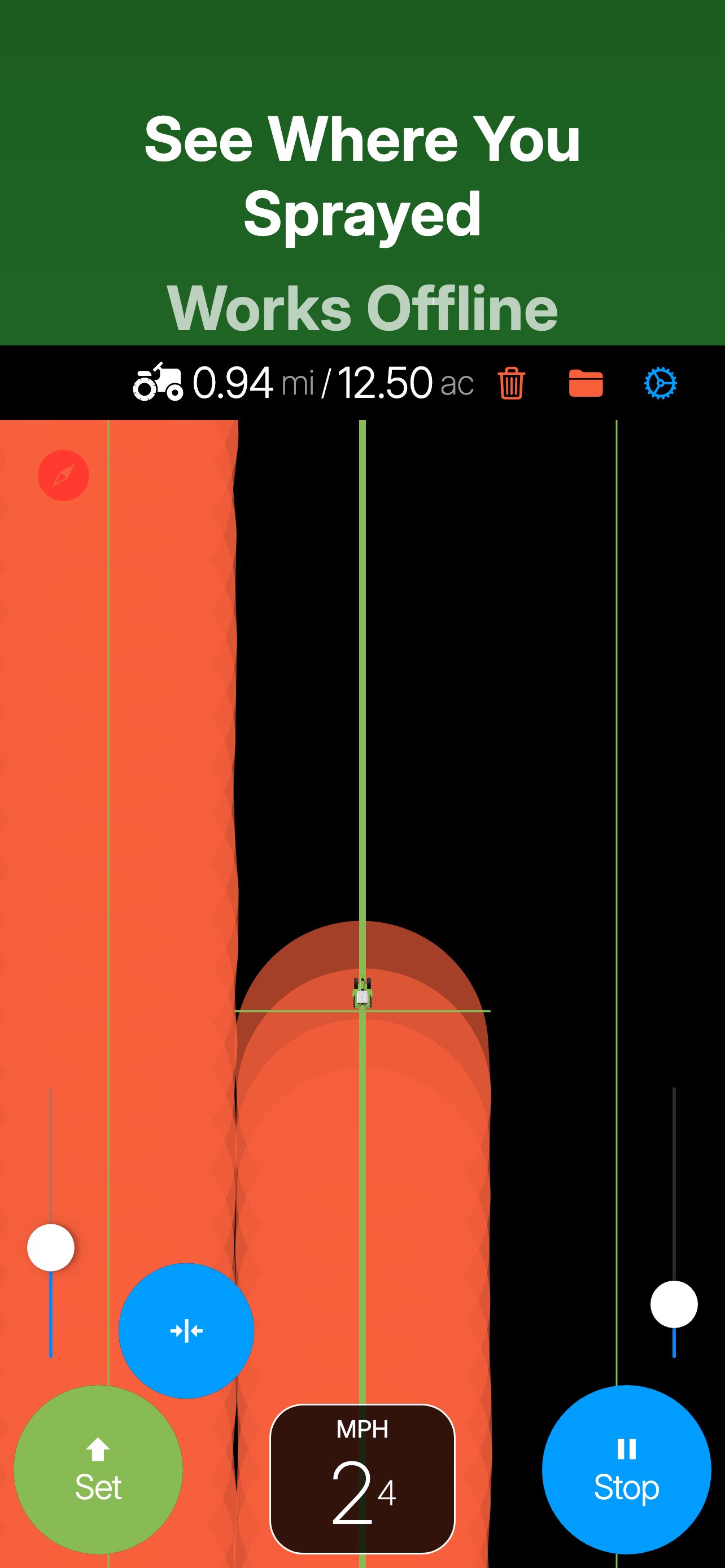
1. Set Your Working Direction
Align the tractor along the intended work direction and drive to the starting point. Press the "Forward" button. Green guide lines will orient in the work direction.
2. Press "Start" to Begin
After pressing "Start", a trail will begin to appear behind the tractor. Don't worry about the width yet — you'll adjust it in the next step.
3. Set the Working Width
Make your first turn using visual landmarks. Now use the left slider to set the working width. This is much faster and easier than measuring the actual implement width. You're all set — just follow the green lines.
App Controls
Main Screen
- Working width selection — left slider.
- Set work direction — "Forward" button.
- Start processing — "Start" button.
- Track zoom — zoom buttons.
- Clear track.
- Go to settings.
Settings Screen
- If the track is not displayed vertically, you can use manual compass correction.
- Some devices do not apply magnetic declination correction to compass readings.
- If you disable the phone's built-in compass, the heading from the GLONASS/GPS receiver will be used instead.
Tips for Best Results
- Keep your phone closer to the windshield for better satellite reception
- Move it away from the metal dashboard
- Before starting work, make a few test drives in a straight line
- Adjust the compass in settings if necessary